Outro user guide
A complete, screenshot-driven walkthrough of how to use Outro - from building your branded cancellation page to acting on the exit interviews you collect.
Welcome to Outro
Outro turns your cancel flow into a voice exit interview. You build a branded cancellation page, point your "Cancel subscription" button at it, and every churning customer is asked one question in their own words before they finish cancelling.
Each voice answer is automatically transcribed and translated into your language, scored for sentiment, and tagged with themes. Everything lands in your dashboard and rolls up into a weekly digest - so you finally know why people leave, not just that they did.
What you'll learn
- How to create a branded cancellation page in a few clicks.
- How to set your logo, colors, question prompt, and button copy.
- How to add retention offers that win some cancelling customers back.
- How to embed the page or point your cancel button at it and redirect customers back.
- How to connect Stripe and Lemon Squeezy so every cancellation carries the plan and MRR at risk.
- How to read responses and track the MRR you save vs. lose in Revenue Recovery.
- How AI summaries and the weekly cancellation digest distill what customers are saying.
- How to manage your team, plan, and billing.
Quick start - 5 minutes to live
If you'd rather skim, here's the shortest possible path from sign up to collecting real exit interviews.
Create an account
Click Sign up on the landing page, enter your email, set a password, and confirm via the email we send you. Every account starts on a 14-day trial.
Create your cancellation page
From the dashboard, go to Cancellation pages → New page, choose a slug (your page lives at outro.so/c/your-slug), and write the one question you want churning customers to answer.
Brand it (optional)
Add your logo, brand color, page title, and button copy. You can always come back and tweak later - the live page updates immediately.
Connect your billing provider (optional)
In Account Settings → Integrations, connect Stripe or Lemon Squeezy. Outro then attaches the customer's plan, subscription age, and MRR at risk to every cancellation - so you can measure churn in dollars, not just counts.
Wire up your cancel flow
Either embed the page in your app with the copy-paste snippet, or point your existing "Cancel subscription" button at your Outro link and set an Allowed return domain so customers bounce back to finish cancelling.
Watch responses roll in
Each answer appears in the Responses tab, transcribed and scored automatically. Revenue Recovery tracks the MRR you save vs. lose, and a cancellation digest lands in your inbox every Monday.
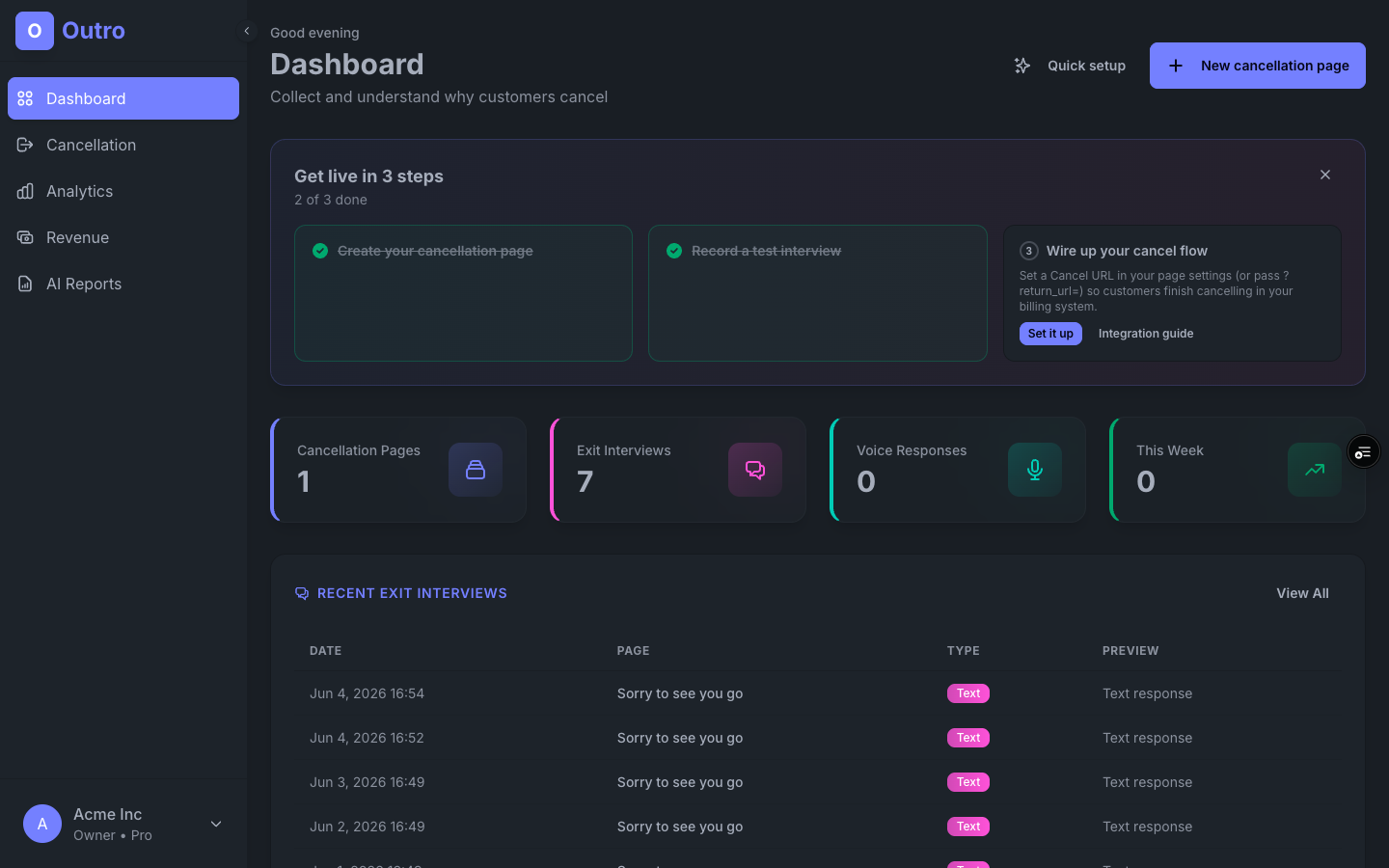
Creating a cancellation page
A cancellation page is the branded screen your customers see when they click cancel. You can have as many as your plan allows - for example, a different page per product or per plan tier, each with its own question.
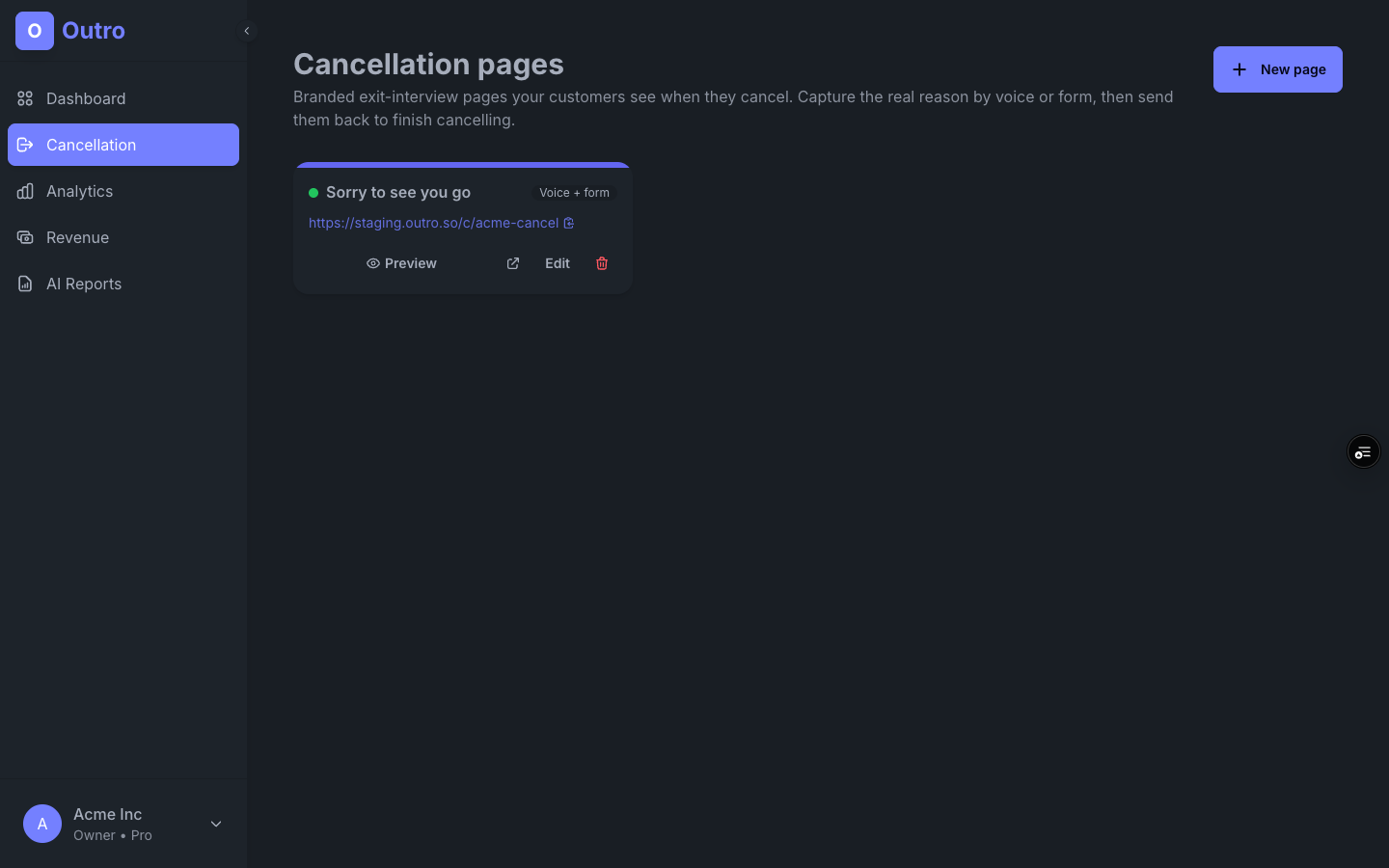
1. Open Cancellation pages
From the sidebar, click Cancellation pages. You'll see every page you own, each with its public URL, live/disabled status, and quick actions.
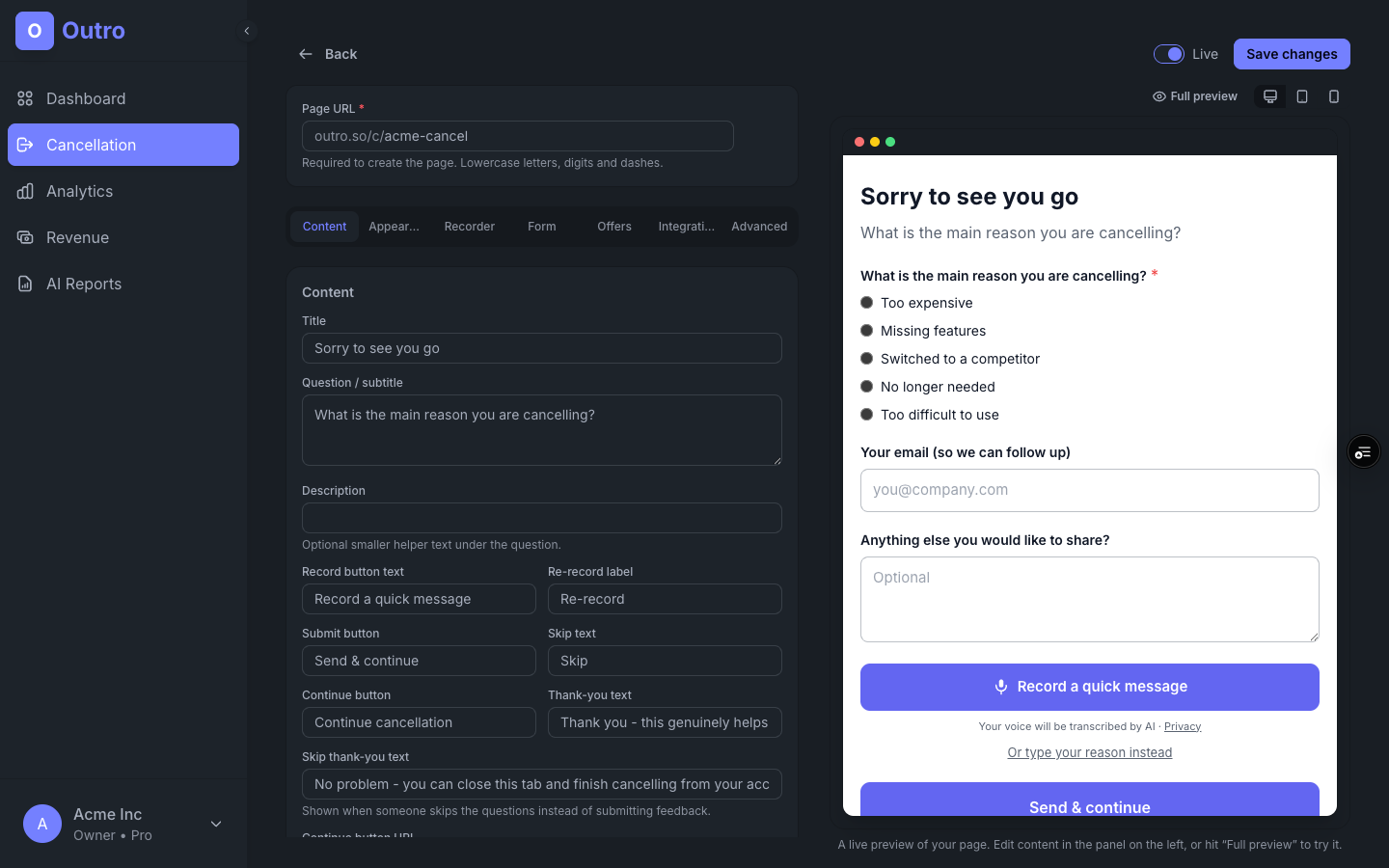
2. Fill in the essentials
The editor has a handful of fields. Only the slug is required - sensible defaults cover the rest:
- Slug - the public URL is
outro.so/c/{slug}. Lowercase letters, digits, and dashes. - Page title - e.g. "Sorry to see you go".
- Question prompt - the single question your customer answers by voice, e.g. "What's the main reason you're cancelling?"
- Skip / Continue button text - the copy on the skip and continue-cancellation buttons.
Branding the page
The page should feel like your product, not ours. The Appearance tab controls the look - pick a layout (full page, split, or card), set the background, brand color, card style, and your logo - and changes go live in the preview the moment you make them.
Logo & brand color
Paste a hosted logo URL to show your mark at the top of the page, and pick a brand color with the color picker (or paste a hex value). The color drives the accent bar, buttons, and record control.
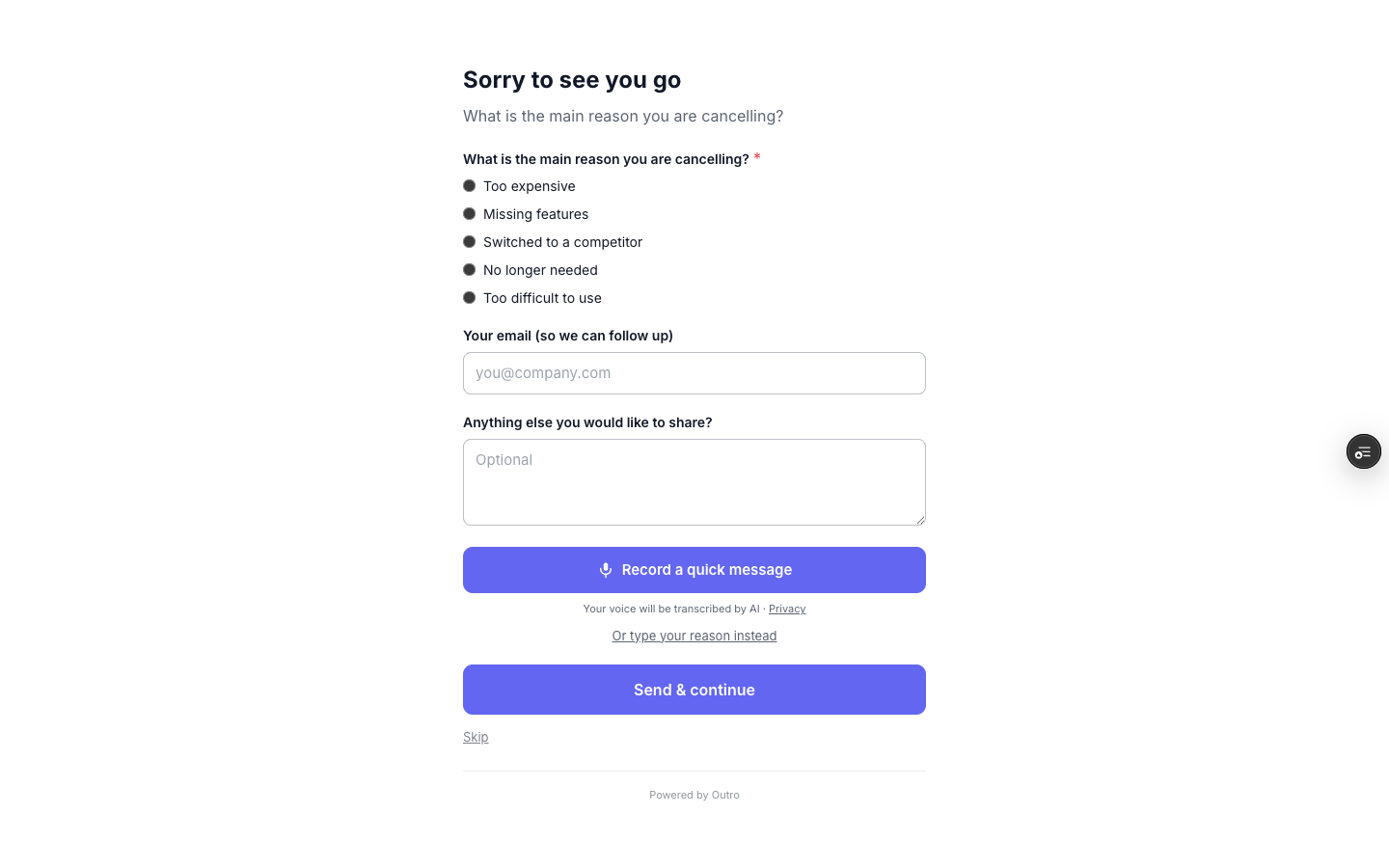
Live toggle
The Page is live toggle controls whether the public URL responds. Turn it off to take a page down without deleting it (and its responses).
Retention offers
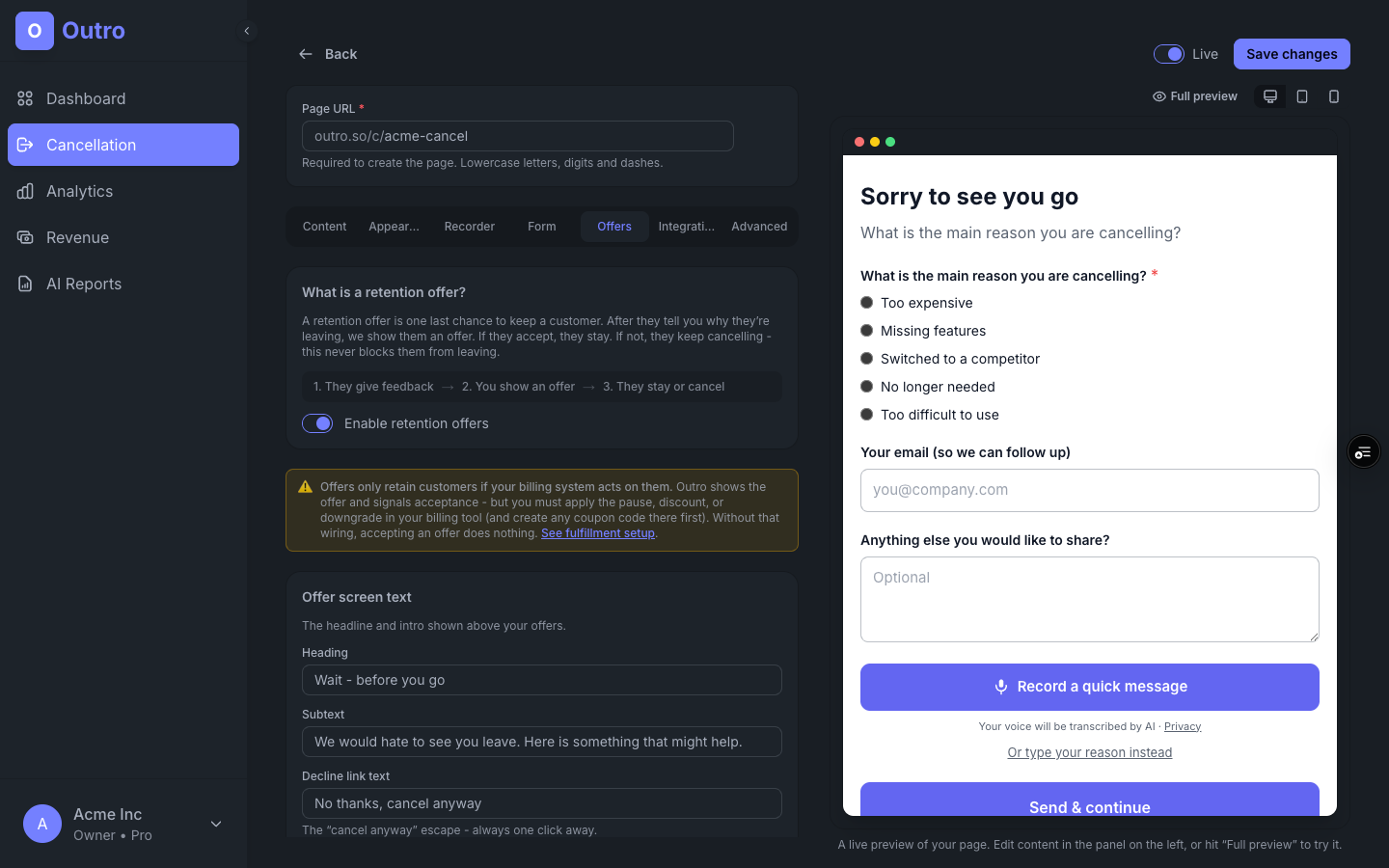
A cancellation isn't always final. After a customer answers your question, Outro can show a retention offer - a last-chance incentive to stay. Some take it; the rest cancel as normal. Either way you learn something.
Open the Offers tab in the page editor and turn on Enable retention offers. The flow is simple: they give feedback → you show an offer → they stay or cancel.
Offer types
- Discount - a coupon code (e.g. "50% off for 3 months") the customer copies and applies at checkout, with an optional billing link.
- Pause subscription - send them to a pause page in your app instead of cancelling outright.
- Downgrade plan - link to your plans page so they can move to a cheaper tier.
- Contact support - route a save-able customer to a human via email or a support link.
Targeting offers to reasons
Each offer can target specific cancellation reasons, and there are two ways to match:
- By what they pick - match the answer the visitor selected in your form (e.g. a "Too expensive" radio option).
- By what they say - when the visitor records a voice answer and offers are enabled, Outro transcribes it and uses AI to detect the real churn reason (too expensive, missing features, not using it, too hard to use, technical issues, switching), then shows the offer that matches what they actually said. This happens inline - the visitor sees a brief "finding the best option" pause while it classifies.
Outro shows the first offer that matches either signal; if none match, it shows the first offer with no reasons selected (your catch-all). So a customer who says the price is too high gets your discount even if they never touched the form, while "missing a feature" routes to support. You can mix form answers and voice-detected reasons on the same offer - Outro maps the two together, so an offer set up against a form label still matches the equivalent spoken reason.
Wiring up your cancel flow
There are two ways to put Outro in front of cancelling customers. Pick whichever fits your app:
- Embed it - drop an iframe + a few lines of script into your existing cancel screen. The page resizes itself and tells your app when a customer accepts an offer.
- Link to it - point your "Cancel subscription" button at your hosted Outro URL, and Outro redirects the customer back to finish cancelling.
Option A - embed the page
Copy the snippet from the editor's Integration tab (the Inline embed block) and paste it where your cancel flow lives. It listens for two messages: a resize event (so the iframe grows to fit) and an offer_accepted event (so you can apply the retention offer in your billing system).
Append user_id (and optionally external_ref) to the iframe URL just like you would on a link - embedded cancellations match to a billing customer the same way, so the snapshotted plan and MRR are accurate.
<iframe src="https://outro.so/c/your-slug?embed=1&user_id=USER_ID&external_ref=REF"
  id="outro-embed"
  style="border:0;width:100%;display:block;min-height:320px"
  title="Cancellation"></iframe>
<script>
  window.addEventListener('message', function (e) {
    if (e.origin !== 'https://outro.so') return;
    var d = e.data;
    if (!d || d.type !== 'outro-embed') return;
    if (d.kind === 'resize') {
      var f = document.getElementById('outro-embed');
      if (f) f.style.height = d.height + 'px';
    }
    if (d.kind === 'offer_accepted') {
      // d.offer = pause|downgrade|discount|contact, d.responseId
      // Apply the offer in your billing system here.
      if (d.offerUrl) window.location.href = d.offerUrl;
    }
  });
</script>
Option B - the integration link
The editor generates a link you can copy. It looks like this:
outro.so/c/your-slug?return_url=https://app.acme.com/cancel/done&user_id=USER_ID&external_ref=REF- return_url - where to send the customer after they answer. Must be on your allowed return domain.
- user_id - your own identifier for the customer. Comes back so you can match the response to an account.
- external_ref - any extra context you want to attach (plan, MRR, signup date). Stored alongside the response.
The redirect back
After the customer records an answer (or clicks the skip / continue button), Outro sends them to your return_url with two query params appended so your app can finish the cancellation:
https://app.acme.com/cancel/done?outro_response_id=...&user_id=USER_IDAllowed return domain
Set Allowed return domain in the editor (e.g. acme.com). Outro only ever redirects back to that host or a subdomain of it.
return_url on any other host is rejected by design, so no one can hijack the redirect.Applying the offer in your billing system
There are two ways to apply an accepted offer. Automatic - connect your billing provider (Stripe or Lemon Squeezy) in Settings and turn on "Apply automatically" on an offer; Outro applies the discount, pause, or downgrade for you. Manual - Outro just signals your app and you perform the save yourself, using the copy-paste glue below. Automatic needs an API key with write access; manual needs none.
What key do I need?
- Stripe - a read-only restricted key powers insights (MRR at risk). To auto-apply offers, the key needs Write on Subscriptions and Coupons, plus Read on Products and Prices (for downgrades). A secret key works but a restricted key is safer.
- Lemon Squeezy - API keys are full-access, so the same key powers insights and auto-applies pause and downgrade offers. Discounts can't be applied to an existing subscription via the Lemon Squeezy API, so discount offers show the coupon code to the customer instead of auto-applying.
The two signals
- Embedded page - an
offer_acceptedpostMessage withofferset todiscount,pause,downgradeorcontact, plus theresponseId. - Hosted page - the redirect back to your app carries
outro_offer=<type>alongsideoutro_response_idand youruser_id.
Either way, route the signal to one server-side endpoint and fulfill there:
// Your cancel/done page (or the embed's message handler) calls this:
// POST /api/retention/fulfill { userId, offer, responseId }
app.post('/api/retention/fulfill', async (req, res) => {
  const { userId, offer, responseId } = req.body
  const customer = await db.customers.findByExternalId(userId)

  switch (offer) {
    case 'discount':  await applyDiscount(customer);  break
    case 'pause':     await pauseSubscription(customer); break
    case 'downgrade': await downgradePlan(customer);  break
    case 'contact':   await notifySupport(customer, responseId); break
  }
  res.json({ ok: true })
})outro_offer param and postMessage come from the browser - anyone can type a query string. Before fulfilling, check the customer is actually mid-cancel in your records and cap redemptions (e.g. one retention discount per customer per year).Stripe recipes
With the official stripe Node library and the customer's subscription ID:
// Discount - e.g. a "40% off for 3 months" coupon you created in Stripe
async function applyDiscount(customer) {
  await stripe.subscriptions.update(customer.stripeSubscriptionId, {
    discounts: [{ coupon: 'SAVE40_3MO' }],
  })
}

// Pause - stop charging, auto-resume in 2 months
async function pauseSubscription(customer) {
  const resumesAt = Math.floor(Date.now() / 1000) + 60 * 60 * 24 * 60
  await stripe.subscriptions.update(customer.stripeSubscriptionId, {
    pause_collection: { behavior: 'void', resumes_at: resumesAt },
  })
}

// Downgrade - move the subscription item to a cheaper price
async function downgradePlan(customer) {
  const sub = await stripe.subscriptions.retrieve(customer.stripeSubscriptionId)
  await stripe.subscriptions.update(sub.id, {
    items: [{ id: sub.items.data[0].id, price: 'price_starter_monthly' }],
    proration_behavior: 'create_prorations',
  })
}
Lemon Squeezy recipes
Lemon Squeezy uses plain REST (PATCH /v1/subscriptions/:id with your API key). One quirk: LS can't attach a discount code to a live subscription - for a "discount" offer, switch the customer to a discounted variant of the same plan instead.
const LS = 'https://api.lemonsqueezy.com/v1'
const headers = {
  Authorization: `Bearer ${process.env.LEMONSQUEEZY_API_KEY}`,
  'Content-Type': 'application/vnd.api+json',
  Accept: 'application/vnd.api+json',
}

const patchSub = (id, attributes) =>
  fetch(`${LS}/subscriptions/${id}`, {
    method: 'PATCH',
    headers,
    body: JSON.stringify({ data: { type: 'subscriptions', id: String(id), attributes } }),
  })

// "Discount" - move them to a discounted variant of their plan
async function applyDiscount(customer) {
  await patchSub(customer.lsSubscriptionId, { variant_id: DISCOUNTED_VARIANT_ID })
}

// Pause - stop charging, auto-resume in 2 months
async function pauseSubscription(customer) {
  const resumesAt = new Date(Date.now() + 1000 * 60 * 60 * 24 * 60).toISOString()
  await patchSub(customer.lsSubscriptionId, {
    pause: { mode: 'void', resumes_at: resumesAt },
  })
}

// Downgrade - switch to the cheaper plan's variant
async function downgradePlan(customer) {
  await patchSub(customer.lsSubscriptionId, { variant_id: STARTER_VARIANT_ID })
}Billing integrations
Connecting your payment provider turns Outro from "how many cancelled" into "how much MRR is walking out the door." Once connected, every cancellation is matched to the paying customer and tagged with their plan, subscription age, and monthly revenue at risk.
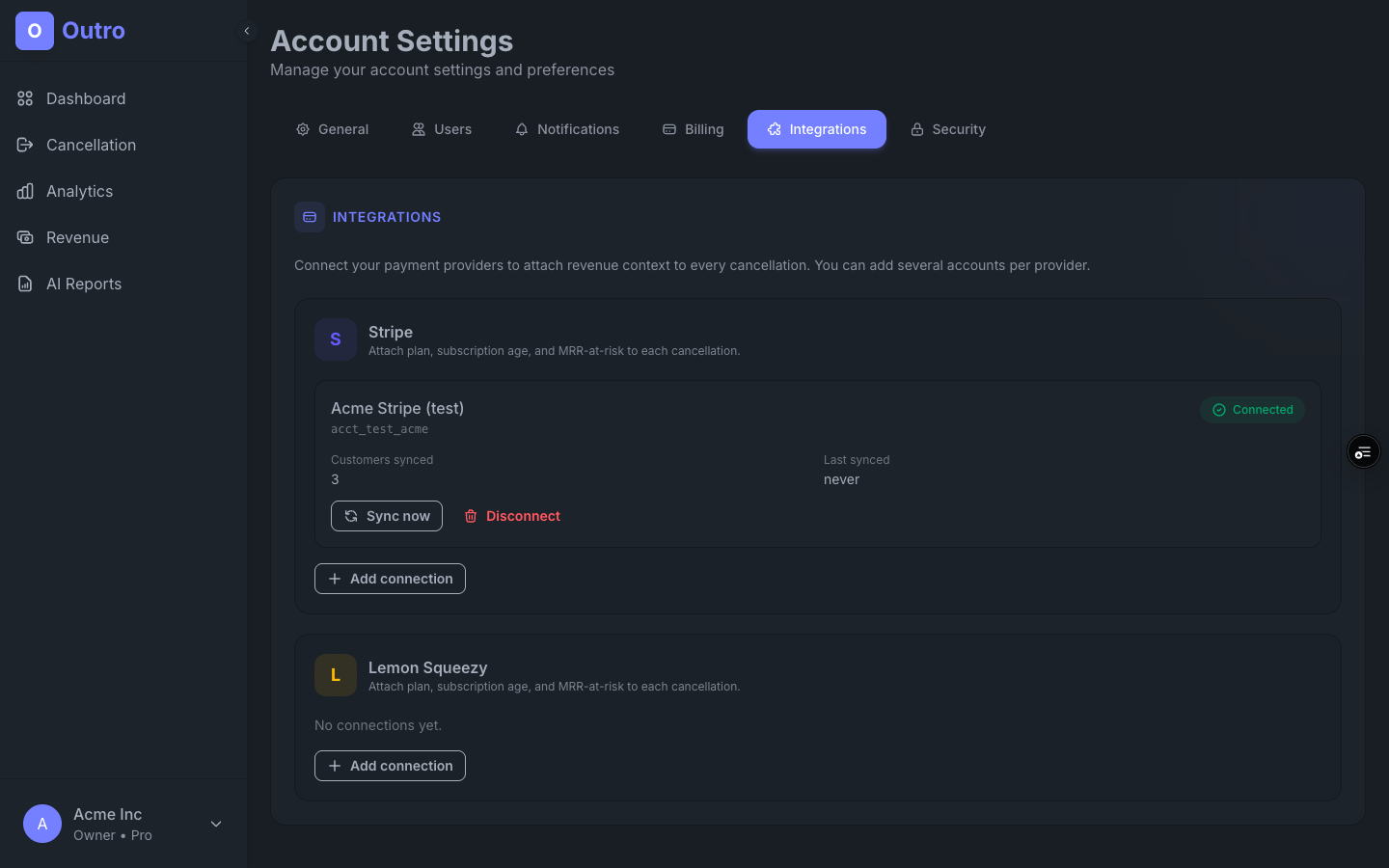
Go to Account Settings → Integrations. Outro supports Stripe and Lemon Squeezy, and you can add several accounts per provider - handy if you run more than one store or entity.
Managing a connection
- Add connection - paste the provider API key. Outro pulls in your customers (email, plan, MRR, subscription start) and caches them for matching.
- Sync now - refresh the cached customer list on demand. Outro also re-syncs on a daily schedule.
- Disconnect - removes the cached customers for that connection. Past cancellation snapshots stay intact - the numbers you've already recorded don't change.
How matching works
When a cancellation comes in, Outro matches it to a synced customer by the user_id / external_ref you passed in, or by email. The match is captured as a snapshot on the response, so the MRR figure reflects what that customer was worth at the moment they cancelled.
user_id on your cancel link or embed for the most reliable matching - it's exact, where email matching depends on the address lining up.Reading responses
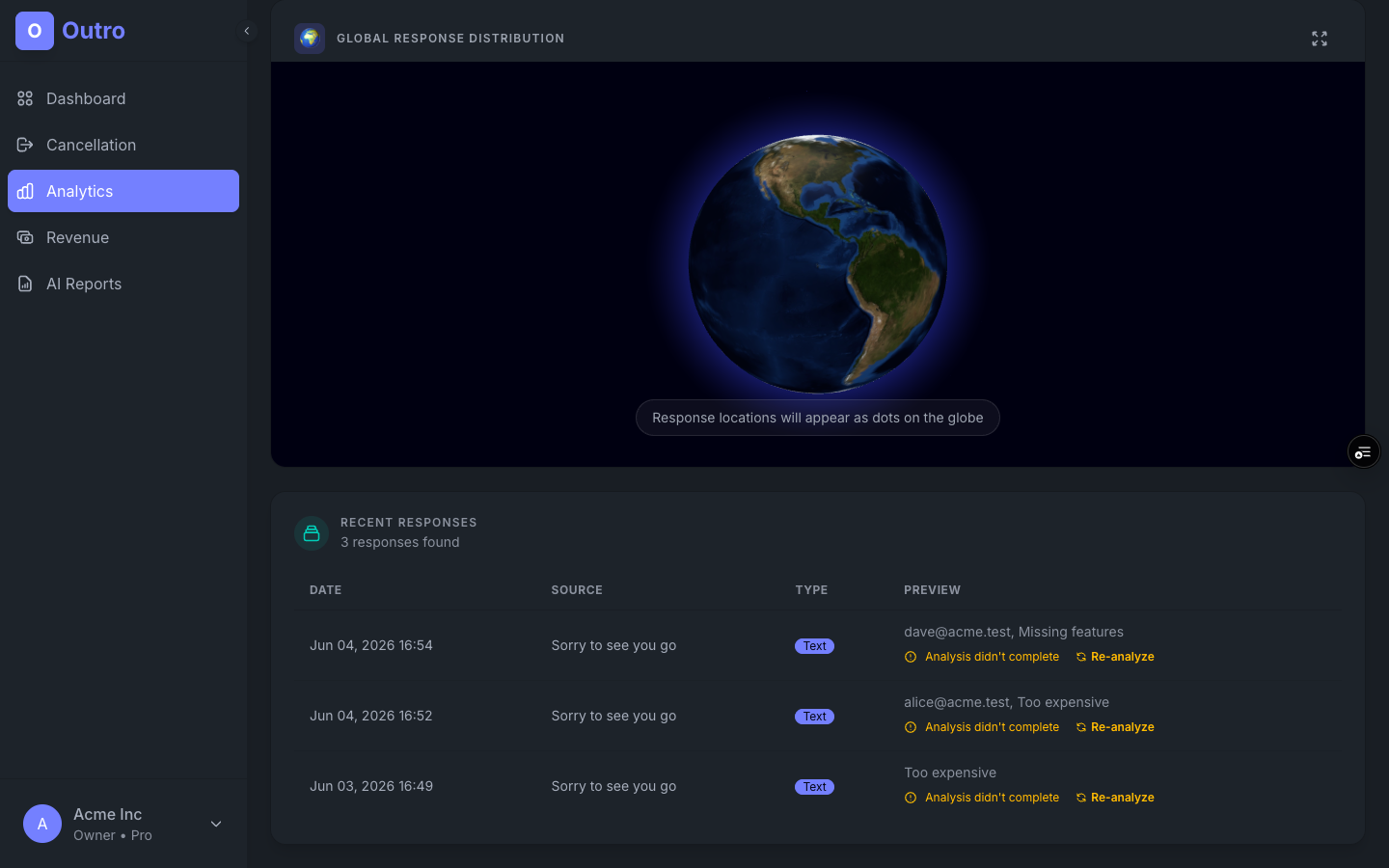
Every answer shows up in the Responses view. Voice answers are transcribed and translated automatically, so you can skim them like text - and each one is scored and tagged the moment it lands.
What's on each response
- Recording & transcript: the original audio (playable), the original-language transcript, and the translation side by side.
- Sentiment & themes: positive / neutral / negative, plus auto-detected themes like pricing, competitor, or missing feature.
- Context: when it was submitted, the
user_idandexternal_refyou passed in, and language/device details.
Revenue Recovery
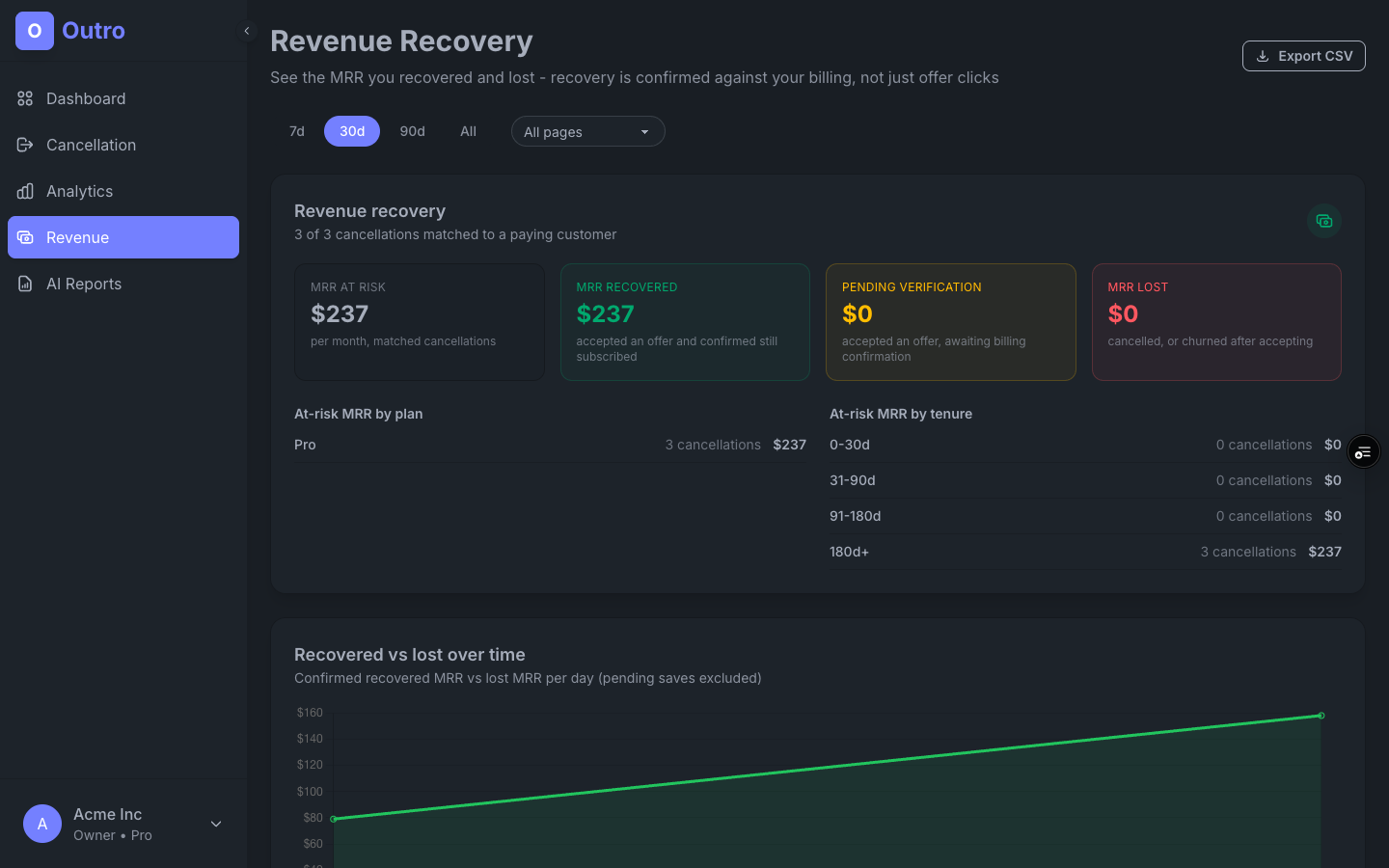
Once a billing provider is connected, the Revenue Recovery page puts a dollar value on your churn. It answers the question that actually matters to the business: how much MRR did we recover, and how much did we lose?
The four numbers
- MRR at risk - total monthly revenue of every matched cancellation in the period.
- MRR recovered - revenue from customers who accepted an offer and are confirmed still subscribed in your billing provider. This is verified retention, not just an offer click.
- Pending verification - customers who accepted an offer recently; counted as recovered only once the grace window passes and they're confirmed still paying.
- MRR lost - customers who cancelled without taking an offer, or who accepted one but churned anyway.
Recovery is confirmed against your billing provider: Outro re-checks each accepting customer's subscription status (synced from Stripe or Lemon Squeezy, refreshed at least daily). A save counts as recovered only after a 14-day grace window and only if the subscription is still live - so the number reflects customers who actually stayed, not clicks on the offer button. Below the headline numbers, at-risk MRR is broken down by plan and by tenure (0-30d, 31-90d, 91-180d, 180d+), so you can see whether you're losing new trials or long-time customers. A header line tells you how many cancellations matched a paying customer - unmatched ones (no billing data) don't carry an MRR figure.
Use the date-range filter (7d / 30d / 90d / All) to scope the view, and Export CSV to pull the raw matched cancellations into a spreadsheet.
Why customers cancel
The Why customers cancel panel breaks the period down by AI-detected churn reason - too expensive, missing features, not using it, too hard to use, technical issues, switching - with a count and share for each. It works off the spoken (or written) answer alone, so it's useful from your very first response, before any billing provider is connected.
When a large share of answers land in Other / unclassified, the panel flags it - that usually means customers are citing a reason the AI taxonomy doesn't cover yet, and those responses are worth listening to by hand.
Analytics
The Analytics page shows how much feedback you're collecting across all your cancellation pages - response volume over time, sentiment mix, and skip vs. answer rate.
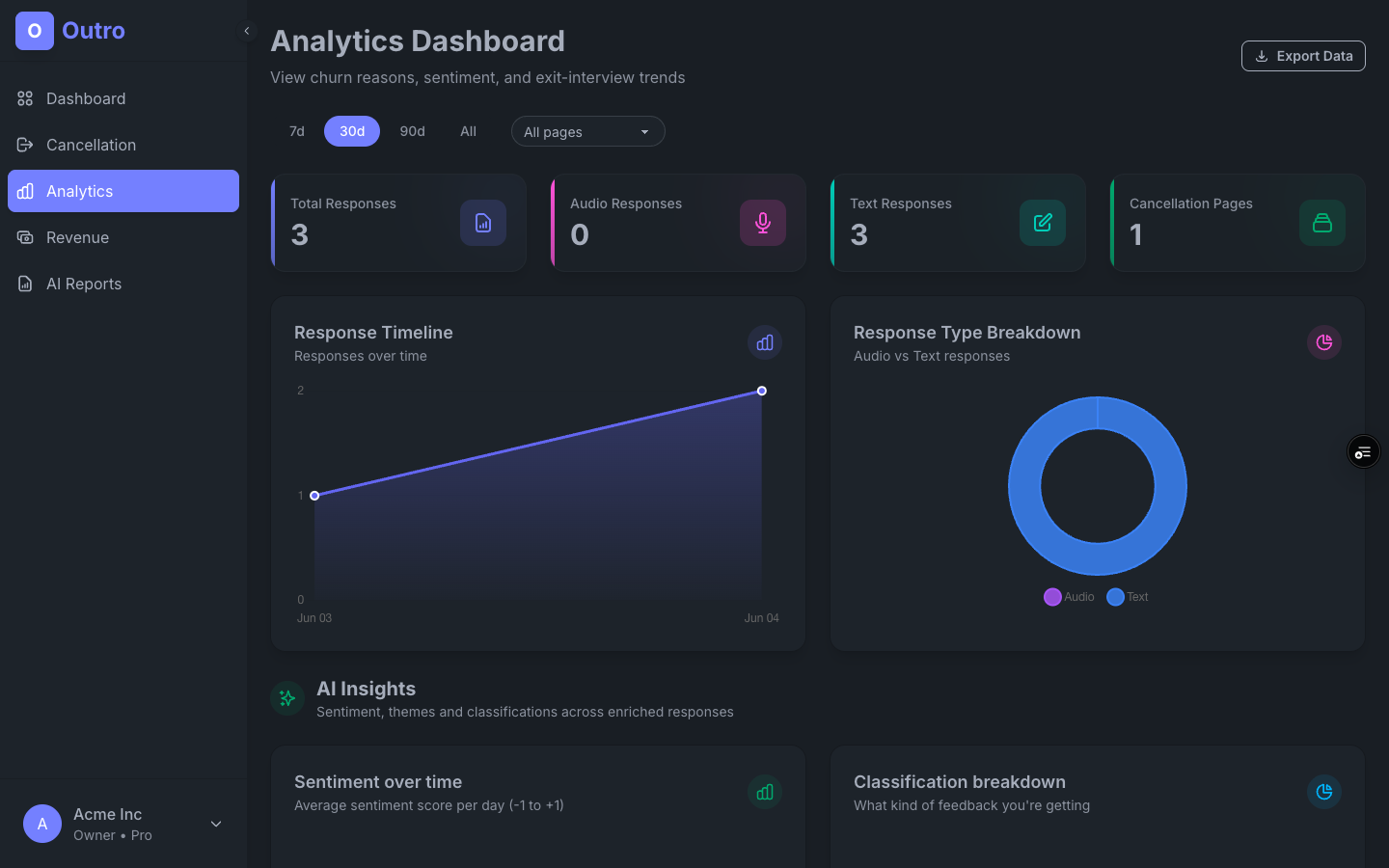
Use it to catch shifts - a spike in negative sentiment after a price change, or a new theme climbing the list.
AI summaries & weekly digest
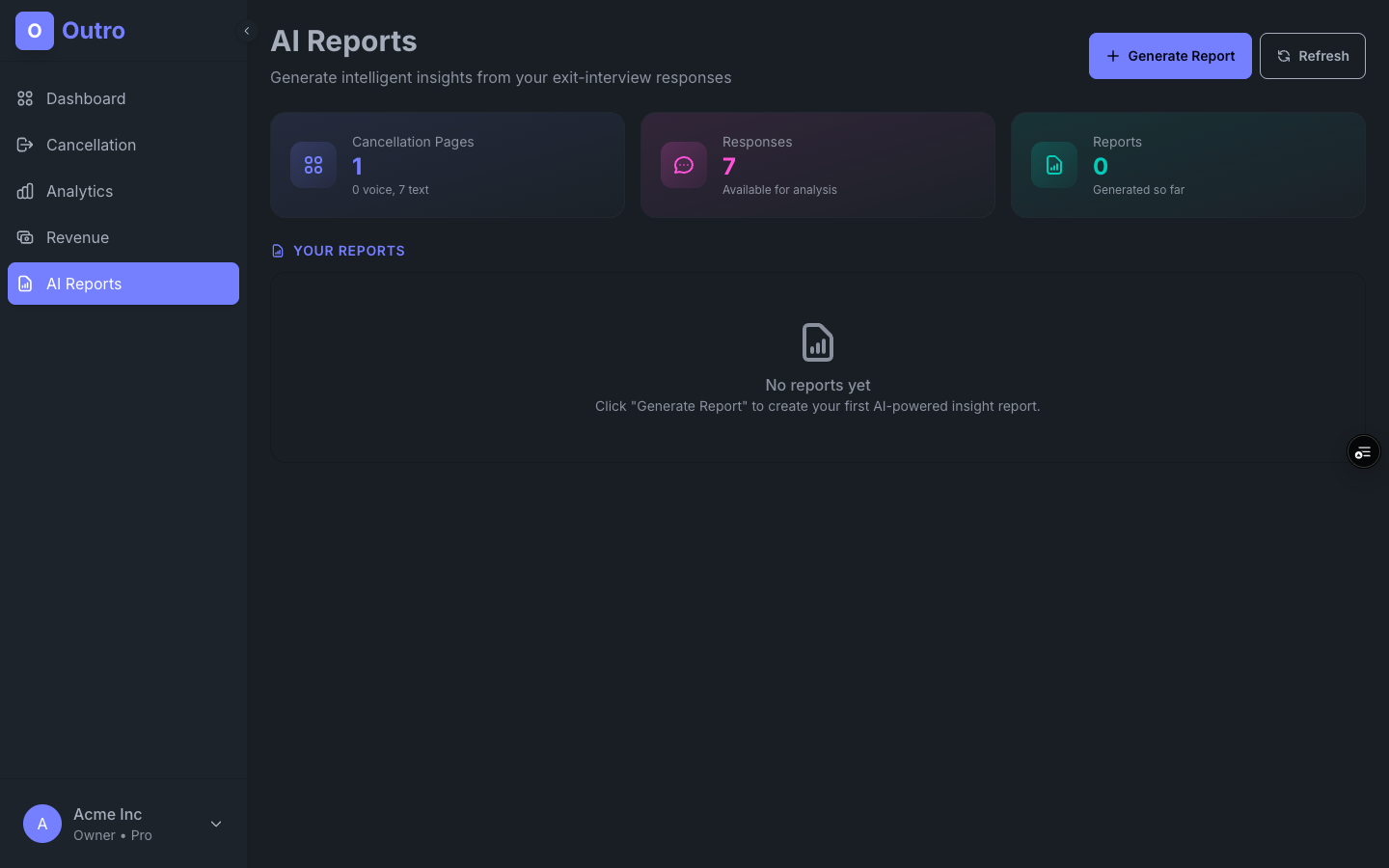
Reading every exit interview by hand doesn't scale. Outro's AI takes your raw responses and produces a readable summary: the top reasons people are leaving, representative quotes, a sentiment breakdown, and suggested next actions.
The weekly cancellation digest
Every Monday at 9am, Outro emails you a one-screen recap of churn over the last 7 days. It's built for the question your team actually asks on Monday morning: who left, why, and what it cost us.
- Cancellations this week - the count, with the change versus the prior week.
- MRR at risk, saved, and lost - the same revenue picture as Revenue Recovery, summarized for the week.
- Top cancellation reasons - the handful of answers customers gave most often.
- Retention offer outcomes - how many offers were accepted, declined, or not shown.
You can preview the layout any time from Account Settings → Notifications → Preview a sample digest, and toggle the email off there if you don't want it. Accounts with zero cancellations in the week are skipped - no empty emails.
Account & team
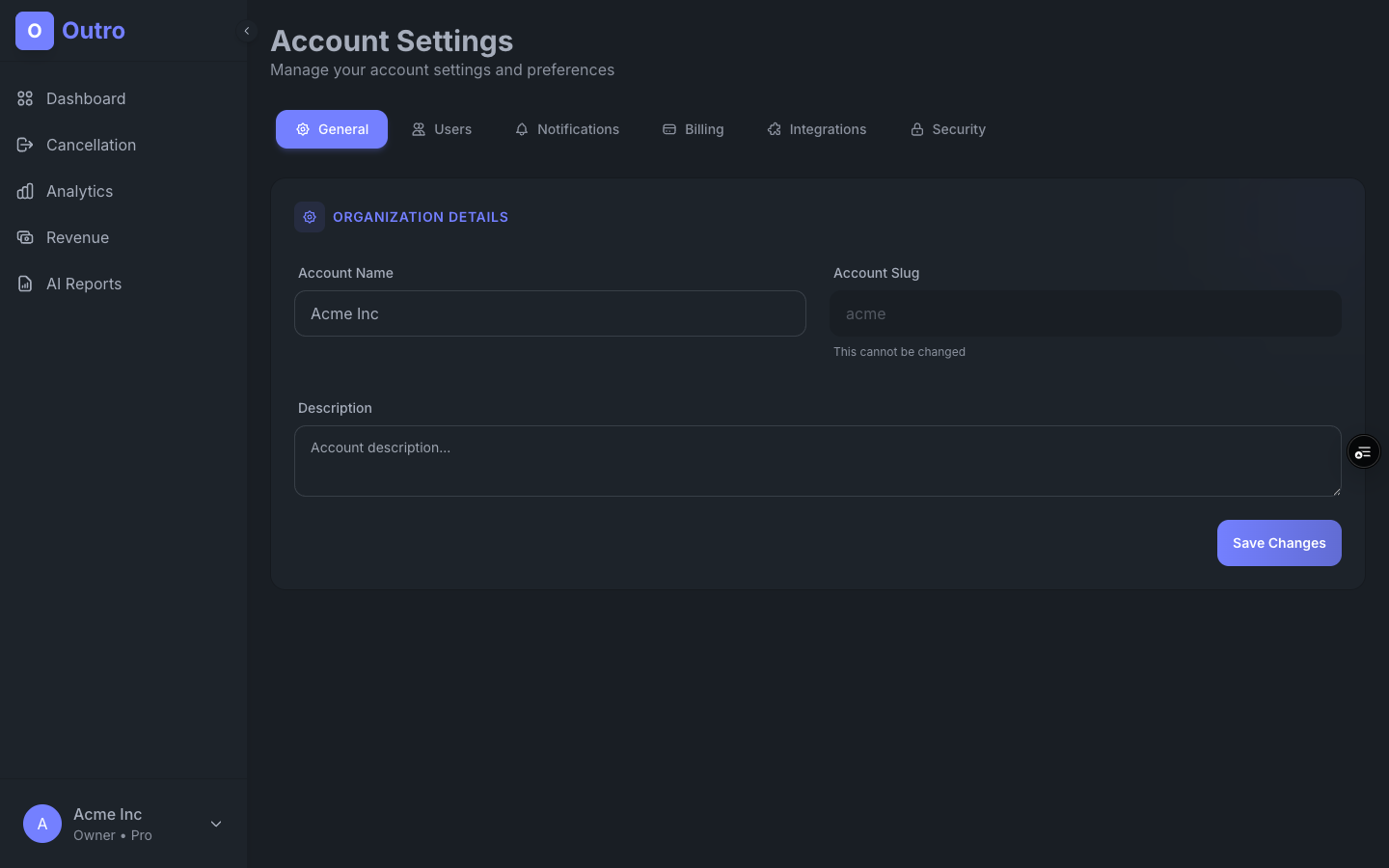
Manage your organization, invite teammates, and change your password from Account Settings (bottom of the sidebar).
Tabs
- General - change the account name and description.
- Users - invite teammates by email and set their role (owner, admin, member).
- Integrations - connect Stripe and Lemon Squeezy (see Billing integrations above).
- Notifications - toggle the weekly digest and preview a sample.
- Billing - see your plan, upgrade, or manage subscription.
- Security - change password, sign out of other sessions.
Billing & plans
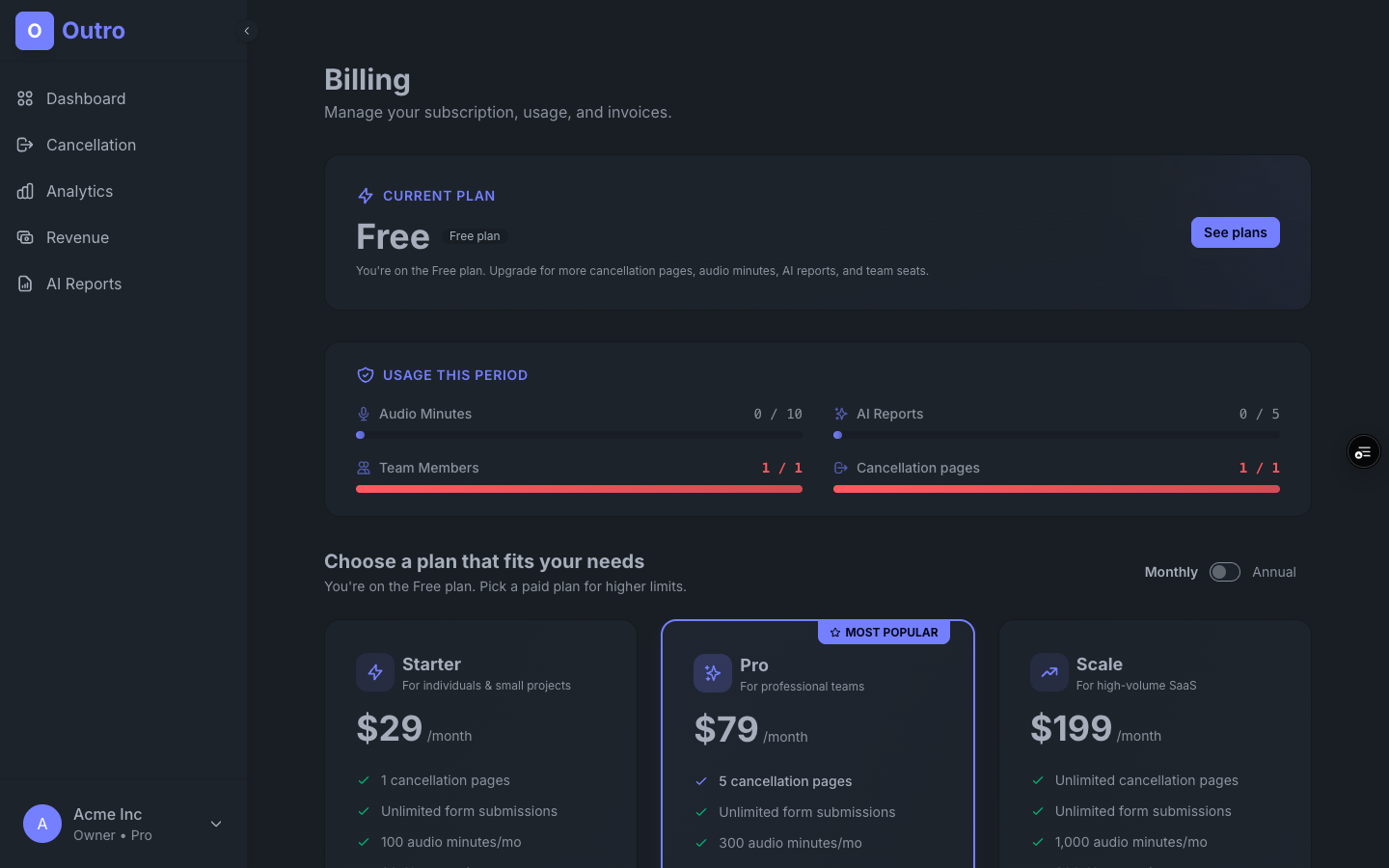
Outro has a free tier and three paid tiers - Starter, Pro and Scale. Each paid plan can be billed monthly or yearly, and yearly works out to roughly two months free. Responses are unlimited on every plan - plans differ on pages, voice minutes, AI reports and seats.
What each plan includes
- Free - $0 - 1 cancellation page, 10 voice minutes & 5 AI reports per month. A no-commitment way to try the full flow.
- Starter - $29/mo ($290/yr) - 1 cancellation page, 100 voice minutes & 30 AI reports per month, 3 team seats, voice & text exit interviews, retention offers, the weekly digest, auto-translation.
- Pro - $79/mo ($790/yr) - up to 5 cancellation pages, 300 voice minutes & 100 AI reports per month, 10 team seats, advanced sentiment (themes & trends), custom branding, Slack notifications, data export, priority support.
- Scale - $199/mo ($1,990/yr) - unlimited cancellation pages, 1,000 voice minutes & 300 AI reports per month, 25 team seats, everything in Pro.
FAQ
Do I need engineering help to install Outro?
Very little. The simplest setup is one line - point your existing "Cancel subscription" button at your Outro link and handle the redirect back. If you prefer to keep customers in your app, paste the embed snippet instead. Connecting a billing provider is just an API key in settings.
What languages does voice transcription support?
Customers can speak in 50+ languages. Every answer is transcribed in the original language and translated into the language you read in, so your team always works in one language.
Do my customers know their voice is transcribed by AI?
Yes. Every voice recorder shows a short "Your voice will be transcribed by AI" line with a link to the privacy policy, translated into each of the 7 supported languages. It's a built-in compliance line and isn't configurable. You remain the data controller for the feedback you collect; Outro processes it on your behalf.
What if a customer doesn't want to record?
They click the skip button and are redirected straight back to finish cancelling. Outro never blocks or delays a cancellation - answering is always optional.
What happens to my data when I delete a page?
The responses you've already collected are retained - deleting a page doesn't destroy its exit interviews. You can also just toggle a page offline instead of deleting it.
Can I try it without paying?
Yes. The Free plan lets you run a real cancellation page with unlimited responses (10 voice minutes a month) - no credit card required. Upgrade to Starter, Pro or Scale when you need more voice minutes, pages, or seats.
Ready to learn why customers leave?
If you're not signed up yet, it takes about 30 seconds.